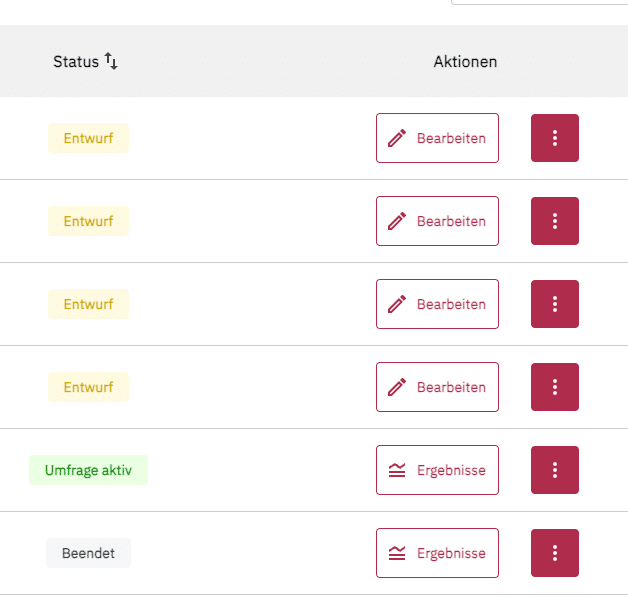
You can view and monitor your survey at any time. To do so, go to the project overview page. Here you can see the status of your surveys: Draft, Survey active, Paused, or Finished.
If the survey is active, paused, or finished, you will see a button labeled Results. Click here to view the (preliminary) results of your survey.
In the reporting section, you can set when you launched and ended the survey.
You can see the following information:
- Total impressions: shows how often the element was displayed. Multiple counts per user are possible.
- Total participants: Number of people who answered at least one question
- Completion rate: Number of participants who fully completed the survey.
- Active since: indicates when the survey was launched
Additionally, you can export the report as a CSV file, copy the link to the report to share it with your team, and refresh or reset the survey results.
In the reporting section, you will see a breakdown of all questions and answers.
The results look different depending on the question type, but for each question you will always find out
- how many answers were submitted
- whether the question was mandatory
- the response rate
You can also reach the results page via the editor of your survey.
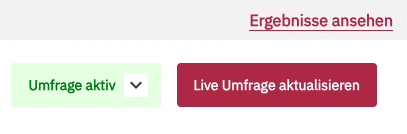
In the upper right corner, you will find the “View results” link, which takes you to the reporting.