You can trigger this script using a JavaScript event handler on the pages where you want to display the survey. You can also use our helper functions to react even more dynamically to elements.
Advanced targeting via JS script deactivates the regular targeting settings regarding pages, devices, e-commerce, users, and when the survey is displayed. The deactivated sections will be grayed out and disabled accordingly.
If you are familiar with JavaScript and programming, you don’t have to use the codes shown in the survey 1:1. You can also adapt the codes to your needs.
Targeting via JS Code #
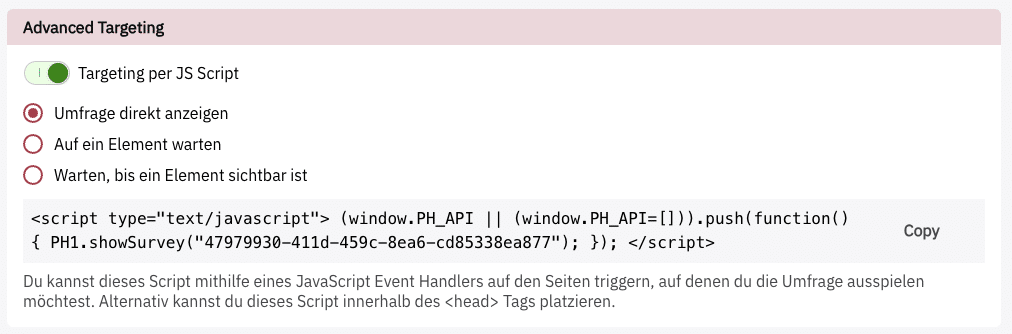
With the “Display survey directly” option, the survey is displayed immediately when you execute the code shown. This can be on a custom trigger via Google Tag Manager, in the source code, or similar.
Targeting via Helper Functions #
With our helper functions, we want to make your life even easier and give you even more flexibility to display surveys at exactly the right time.
Wait for an Element #
It often happens that certain elements are loaded into the website with a delay or that PollHero loads faster than the complete page.
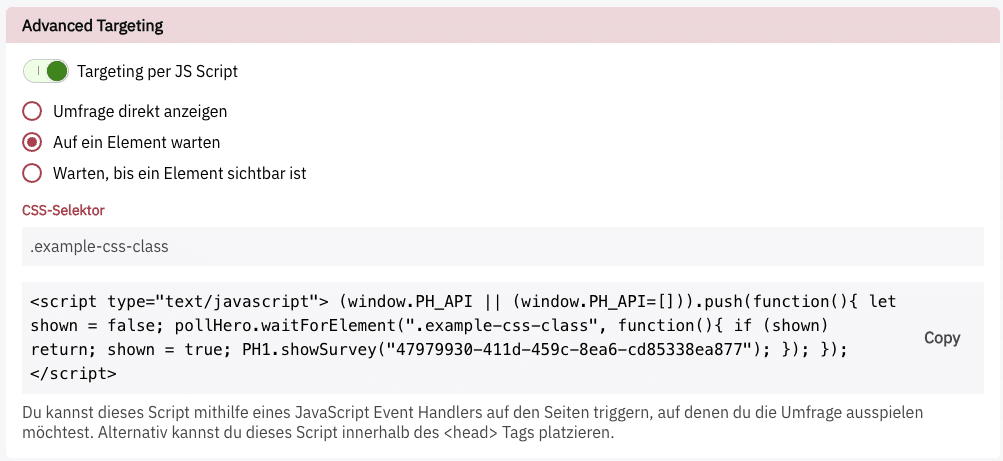
If you only want to display a survey when a certain element is present on the page, you can use this function. PollHero will then regularly check for you whether the specified element is already there, and as soon as it becomes available in the source code, the survey will be displayed.
Simply enter the CSS selector of the element you are waiting for and then use the generated code
Until an Element Is Visible #
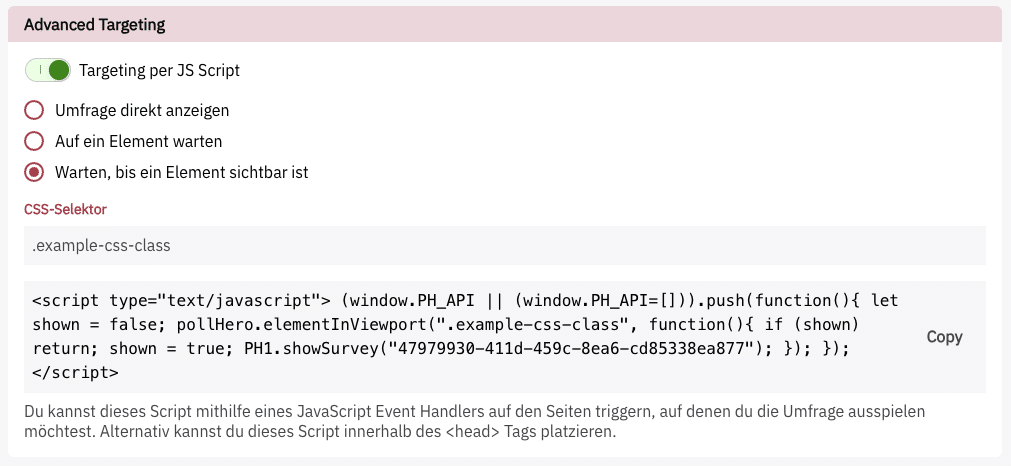
Perhaps you want to trigger a survey only when a certain element becomes visible to the user on their device.
For exactly this case, you can use the Warten, bis ein Element sichtbar ist option.
As soon as the element appears in the user’s viewport, the function is executed and the survey is triggered.