
An embedded survey is integrated directly into the HTML code of your website. This allows the survey to blend seamlessly into your website’s design.
You can deploy the code on multiple pages to target your audience for the survey.
For an embedded survey, you have no additional targeting options beyond this. Instead, you will find the code for embedding the survey in the Target tab at the top left. You can copy the code and paste it wherever you want your survey to appear.
You have the same question types and options available for stand-alone surveys, onsite surveys, and embedded surveys.
The question types are:
- Single Select
- Short Free Text
- Rating Scale
- Multi Select
- Long Free Text
- Net Promoter Score
- Ranking
- Mailing
- Matrix
- Emoji
You can use multiple survey types within one survey.
Learn more about the different question types:
Every survey starts with a welcome message or engagement trigger and ends with a thank you message. We have already pre-written both messages for you, but you can customize them individually.
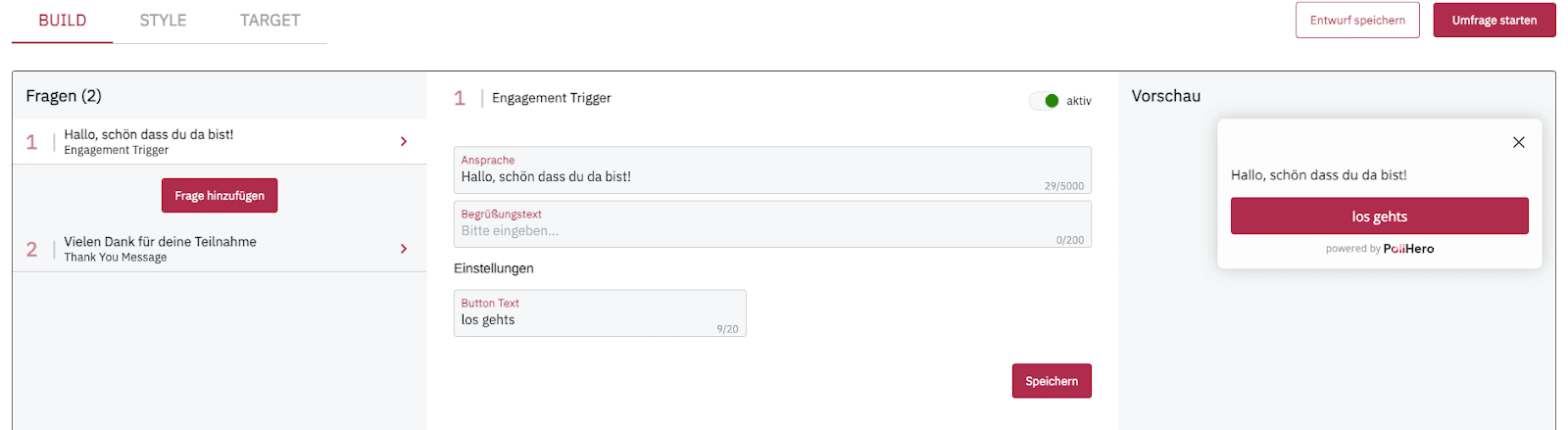
You can deactivate the welcome and thank you messages if desired.
On the right side of the screen, you can see how your message or question appears. You can change the design in the Style section.
Read more about this here: Survey Design
Step 1: Add Question #
Between the welcome message and the thank you message on the left side of the screen is the Add Question button. Click on it to open the overlay with the question types.
Learn more about the different question types:
You can use multiple question types in your survey. You can also change the order of questions by dragging and dropping them to a different position.
However, you cannot change the order of the welcome message and the thank you message.
You can create multiple thank you messages and change the order of the thank you messages among themselves. Additional thank you messages can be found in the question types tab.
Depending on the complexity of your survey, it makes sense to display different thank you messages. Users can exit your survey at different points and deserve individual messages. You should display a different message to users who give you positive feedback than to users who give you negative feedback.
Step 2: Edit Question #
For each question, you can edit the question text. Your question should semantically and logically match the question type. Single select questions are suitable for yes/no questions, while questions about your customers’ opinions can be asked as free text questions or multi select questions.
You can set whether a question should be a required question. If you choose this option, you can formulate an individual error message or use our standard wording. The error message is displayed when participants click “next” without answering the required question.
If a question is not a required question, it can be skipped. You can customize the skip button text or use our wording.
For some questions, you can add an optional description. For example, with multi select questions, you can explain how many answers can be selected. Or you can explain your question in more detail, provide examples for free text answers, etc.
For some question types, you can select whether the answers are displayed in random order, in the specified order, or whether everything except the first or last answer is random.
For example, if you ask a multi select question with brands as answer options, it can be helpful to sort the brands alphabetically or place your biggest competitors at the end.
Step 3: Add Rules #
This step is optional. It can help you better understand your customers’ responses and ask helpful follow-up questions for more complex surveys.
Rules follow an if/then logic that differs for each question type. You can combine multiple rules; they follow an OR logic.
A detailed explanation of all rules can be found in the article Add Rules.
Start Survey #
You publish your survey by clicking the red “Start Survey” button in the upper right corner. Once you have inserted the code on the corresponding pages, the survey will appear immediately on your pages.
End Survey #
Click on the three dots next to the “View Results” button. Then click on “Edit Survey”. In the upper right corner, you will see the green “Survey Active” button. Click here to pause or end the survey. Once the survey is ended, you cannot publish it again.
Continue to the Survey Reporting
Learn more about creating the different survey types: